Read this part first, so nothing surprises you.
This app does not come from the App Store or the Play Store. You add it from this website instead. When you are done, an FFN icon sits on your home screen with your other apps, and tapping it opens FFN full screen with no browser bars in the way. That is the whole difference.
It is not a trick and it does not cost anything. It is just how an app like this one gets on a phone.
On an iPhone or an iPad
Six steps, in order, with a picture of most of them. Use Safari, the browser Apple builds in. Chrome on an iPhone will not offer you this.
-
Open the site in Safari
Go to fishingfriendsnetwork.com in Safari. If you are reading this on your phone in Safari right now, you are already here. Go on to step two.

-
Find Share
Share is the square with an arrow coming up out of the top of it.
On most iPhones it sits right in the bar at the bottom of the screen, and you tap it. On a newer iPhone you tap the menu button in that bottom bar first, and Share is the top item in the list that opens, like the picture here. On an iPad, Share is up at the top right instead.
If you do not see any bar at all, scroll the page up a little and it comes back.
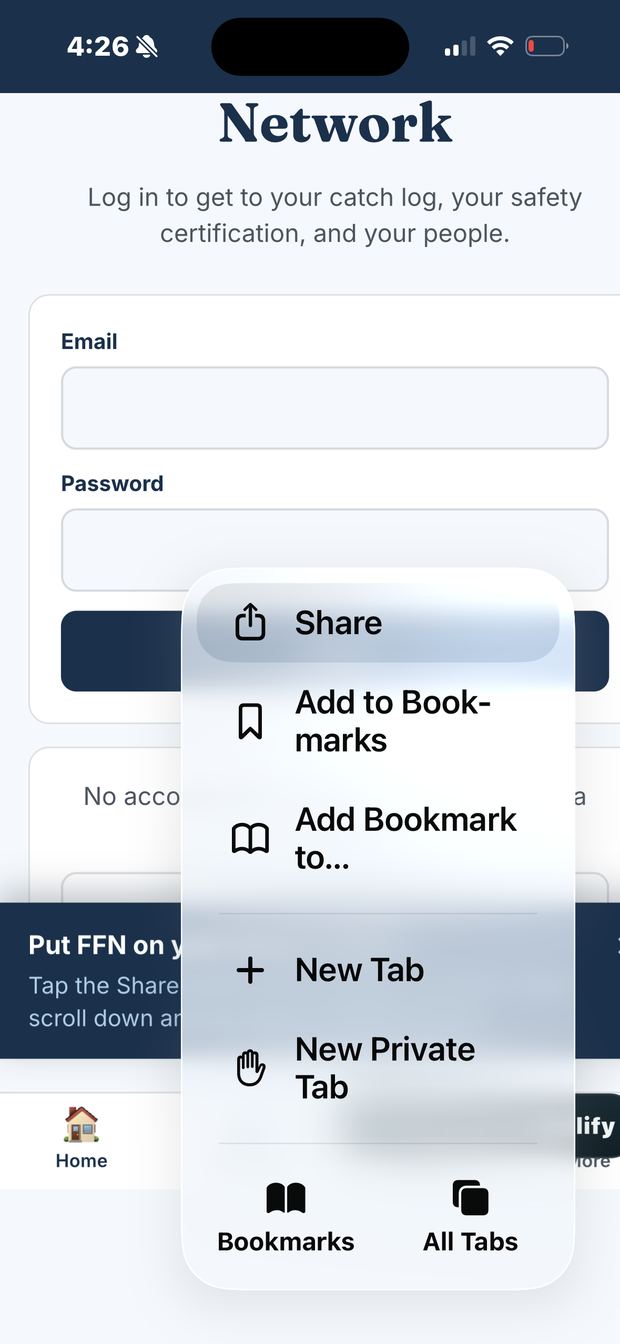
Newer iPhones put Share in this menu. Tap it. -
The share card slides up
You will see FFN and fishingfriendsnetwork.com at the top, a row of apps like AirDrop and Messages, then a row with Copy and a few others.
What you want is not on this first screen yet. That is normal. Keep going.
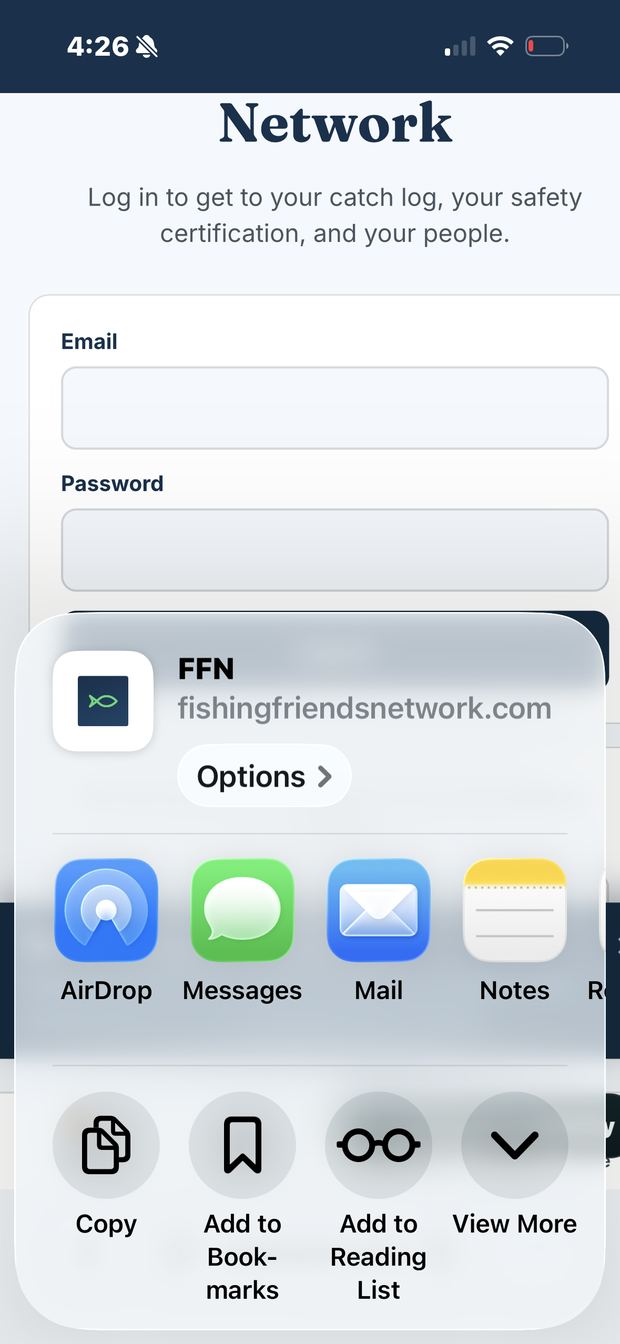
This is what you see first. Add to Home Screen is still hidden. -
Tap View More, then tap Add to Home Screen
Look for View More on the right side of that second row and tap it. The card grows and a longer list appears. You can also just scroll the card up with your finger, it does the same thing.
Now go down that list past Add Bookmark, Add to Favorites, Add to Quick Note and Find on Page. Add to Home Screen is right there. Tap it.
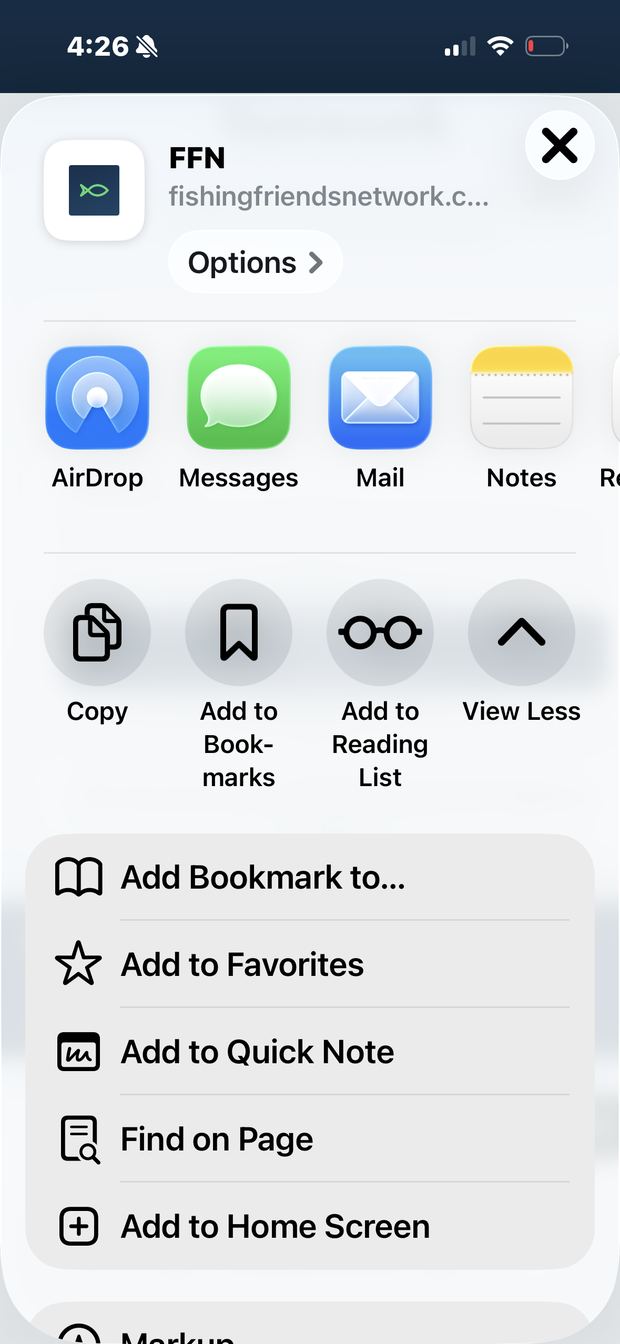
After View More, Add to Home Screen is near the bottom. -
Tap Add
It shows you the icon and the name it is about to use, which is FFN. You can rename it if you want. Then tap Add in the top right corner.
One thing before you tap it. There is a switch on that screen that says Open as Web App, and it is already turned on. Leave it on. That switch is what makes FFN open full screen like a real app. Turn it off and you get a plain bookmark that opens in Safari instead.
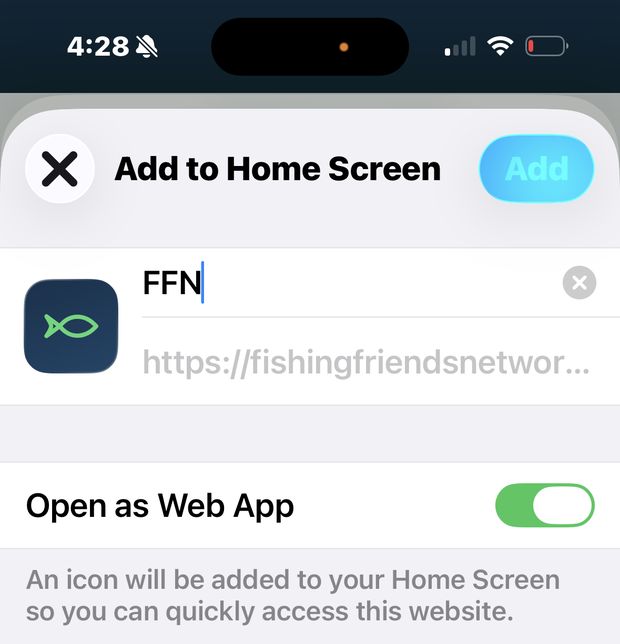
Leave Open as Web App switched on, then tap Add. -
Open it from your home screen
Look at your home screen. The FFN fish is sitting there with your other apps. Tap it. It opens full screen, with Home, My Log, Safety, and More across the bottom.
That is it. You are done. You never have to go through this again on this phone.
